
Every BulkTab feature, explained
Everything on this page is in the free plugin, fully working, with no locked features. The last section covers what the BulkTab Pro add-on adds for large catalogs.
How do I show one tab on many products?
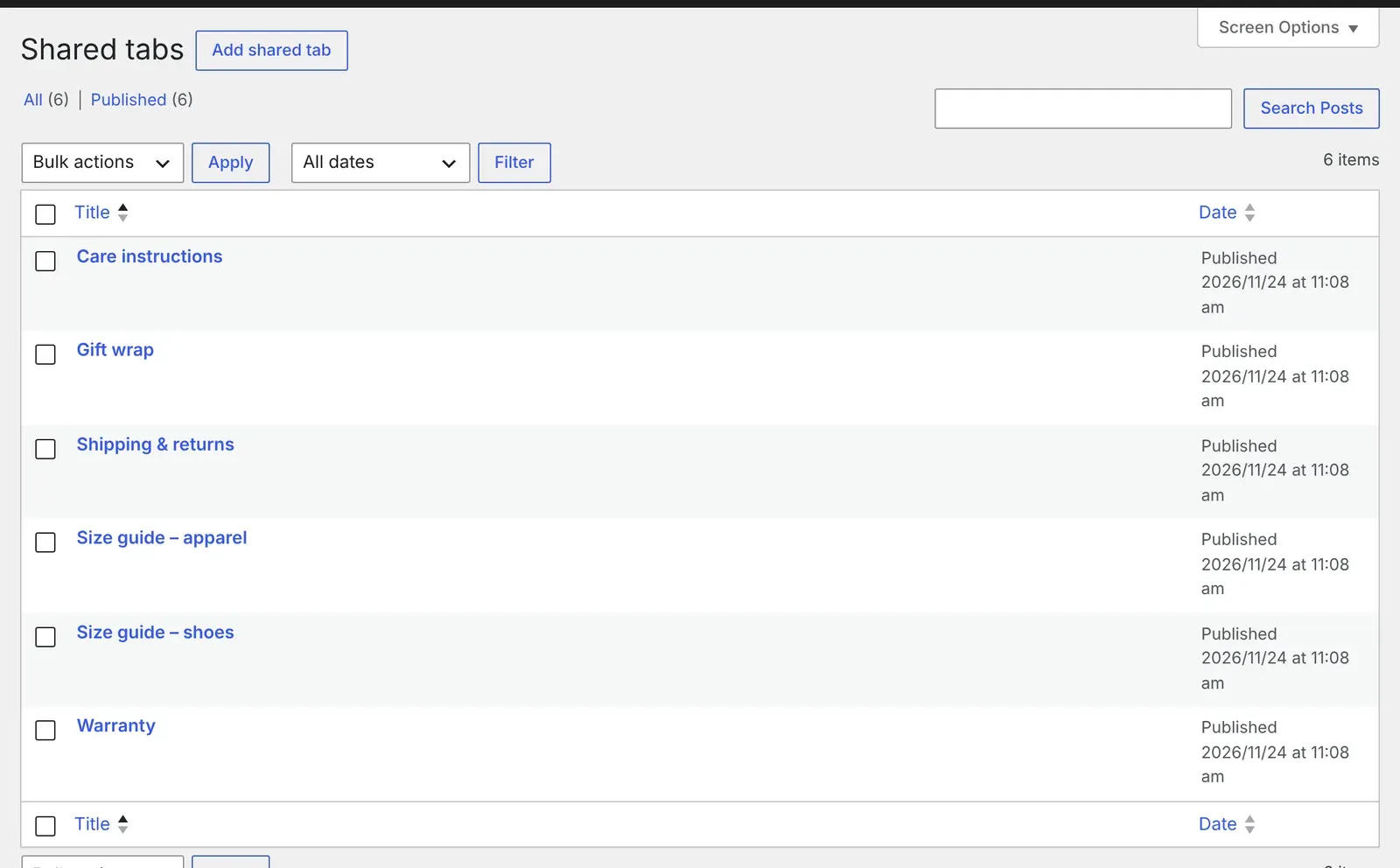
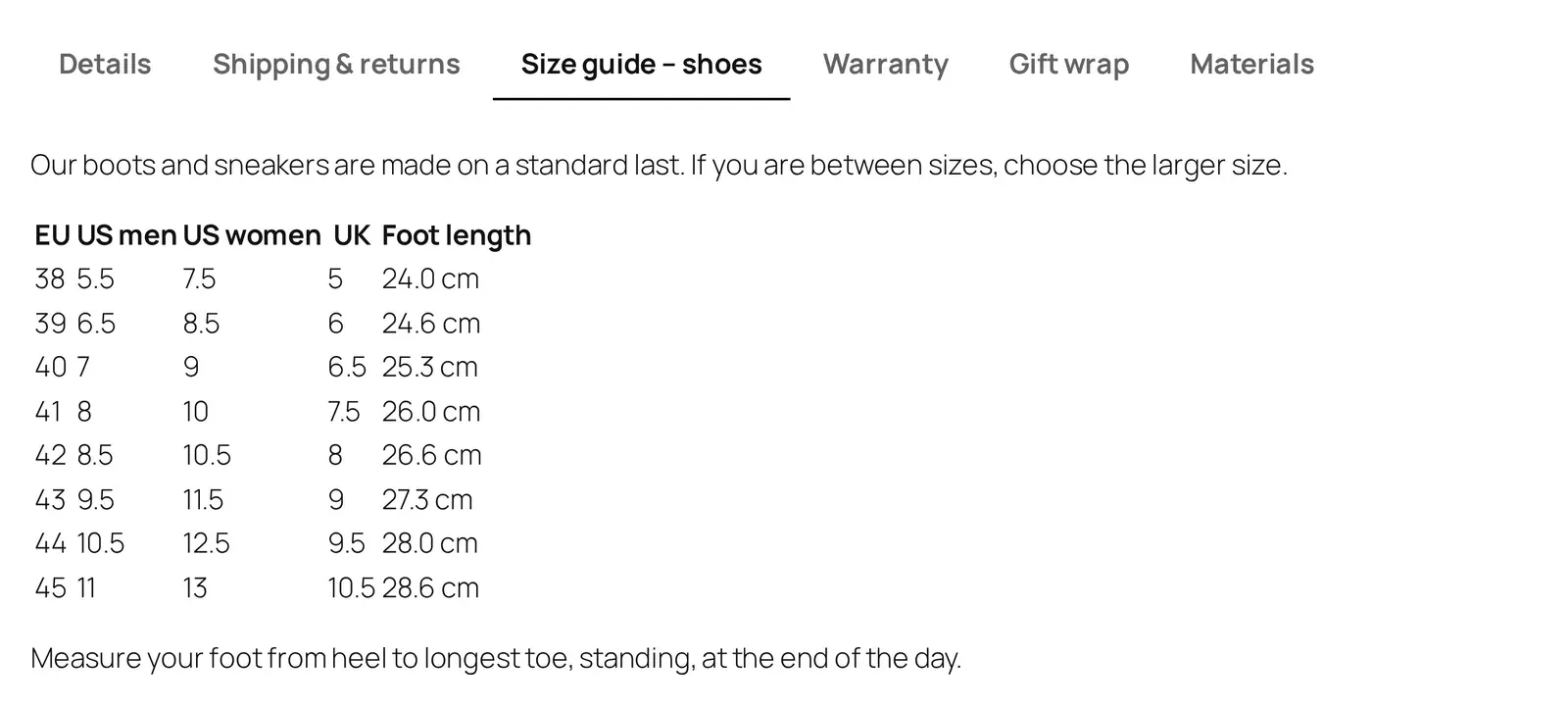
Create a shared tab under Products → Shared tabs, such as Shipping, Returns or a Size guide. Choose where it appears: all products, or every product in chosen categories, tags or brands.
- Sub-categories are included, so a tab for Shoes also shows on Boots and Sneakers.
- New products in that category get the tab automatically. No extra step.
- Edit the shared tab once and every product shows the new version on the next page load.
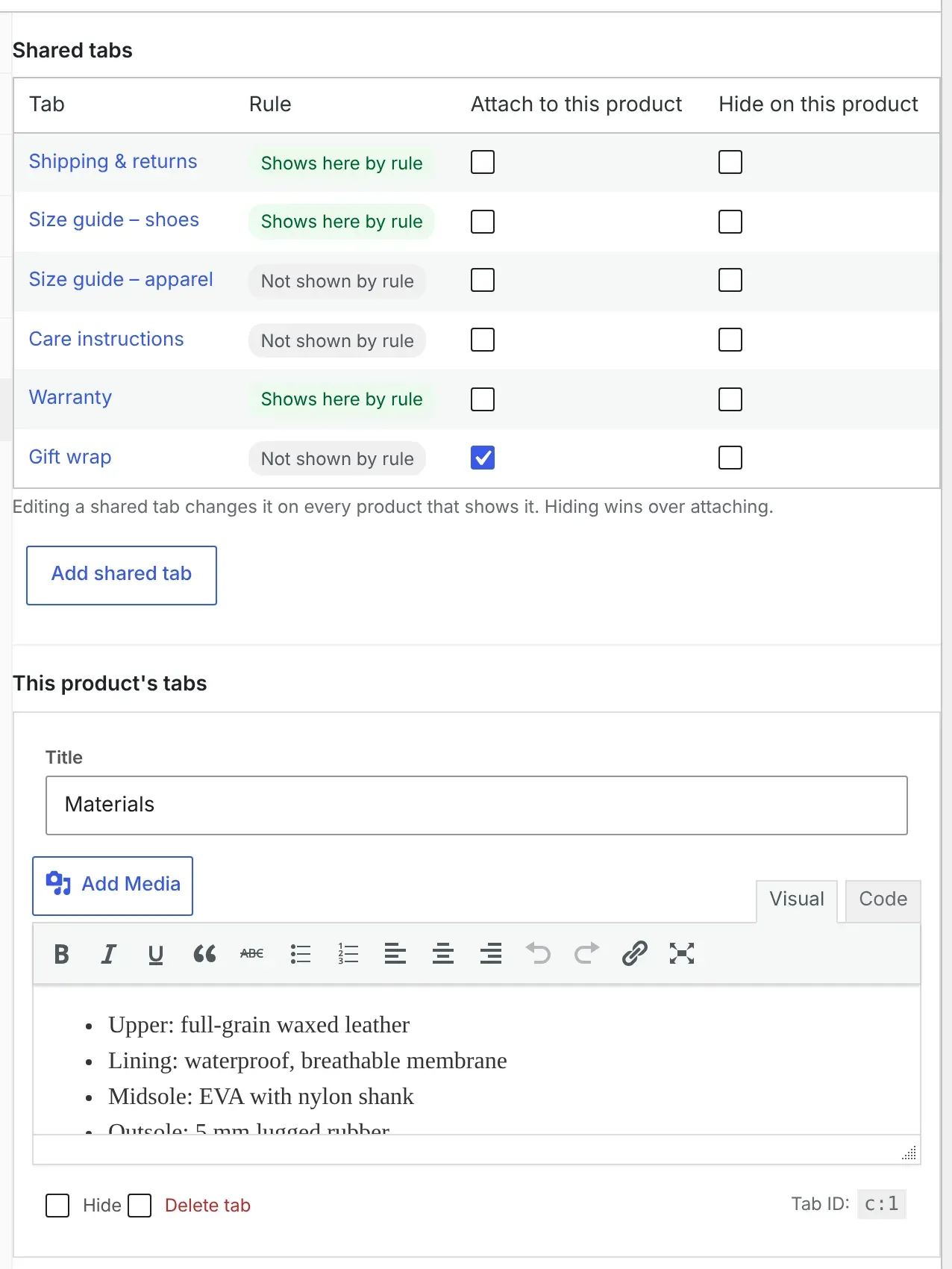
- Attach a shared tab to a single product, or hide it on one product, without touching the rule.
Step by step: how to add a custom product tab in WooCommerce.
What can a product tab contain?
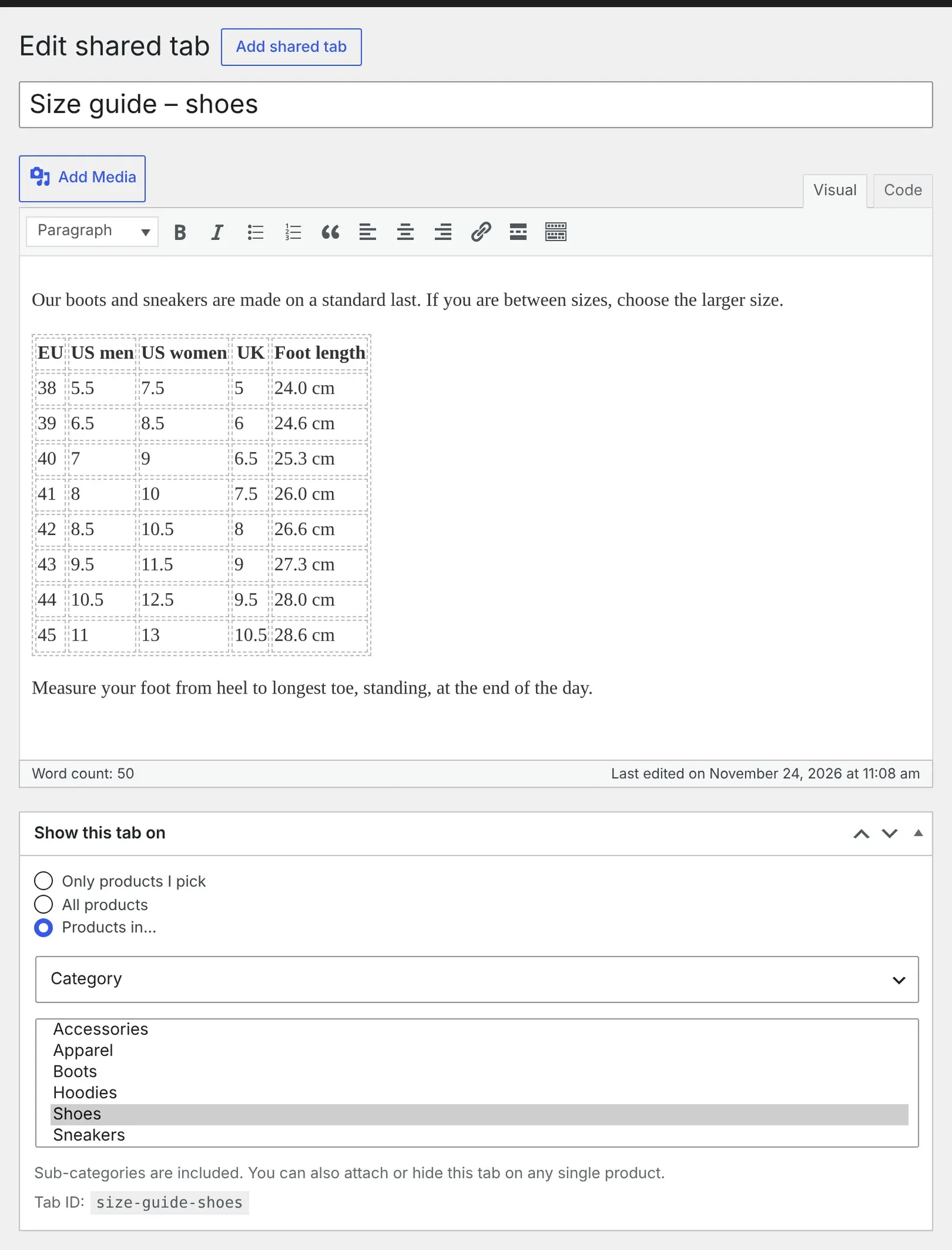
Besides shared tabs, each product can have up to 20 tabs of its own. A tab can hold text, tables, images, video embeds, links to PDFs and shortcodes, written in the normal WordPress editor.
Use BulkTab for size charts, shipping and returns, specifications, care instructions, warranty details, product FAQs, downloads and manuals.
Step by step: how to add a size chart to WooCommerce products.
How does BulkTab keep tab content from being lost?
- Tabs are stored as plain fields, one value each, not one fragile block of data. Imports, search-and-replace and site migrations leave them intact.
- The previous version of every product tab is kept, so a bad edit can be restored from the product's Tabs panel.
- If BulkTab ever finds tab data it can't read, it tells you which product is affected and keeps the data untouched. It never silently shows an empty tab.
- Deleting the plugin keeps your tabs unless you choose otherwise, so reinstalling brings everything back.
Background: why WooCommerce product tabs disappear, and how to prevent it.
Can I rename, reorder or hide the default WooCommerce tabs?
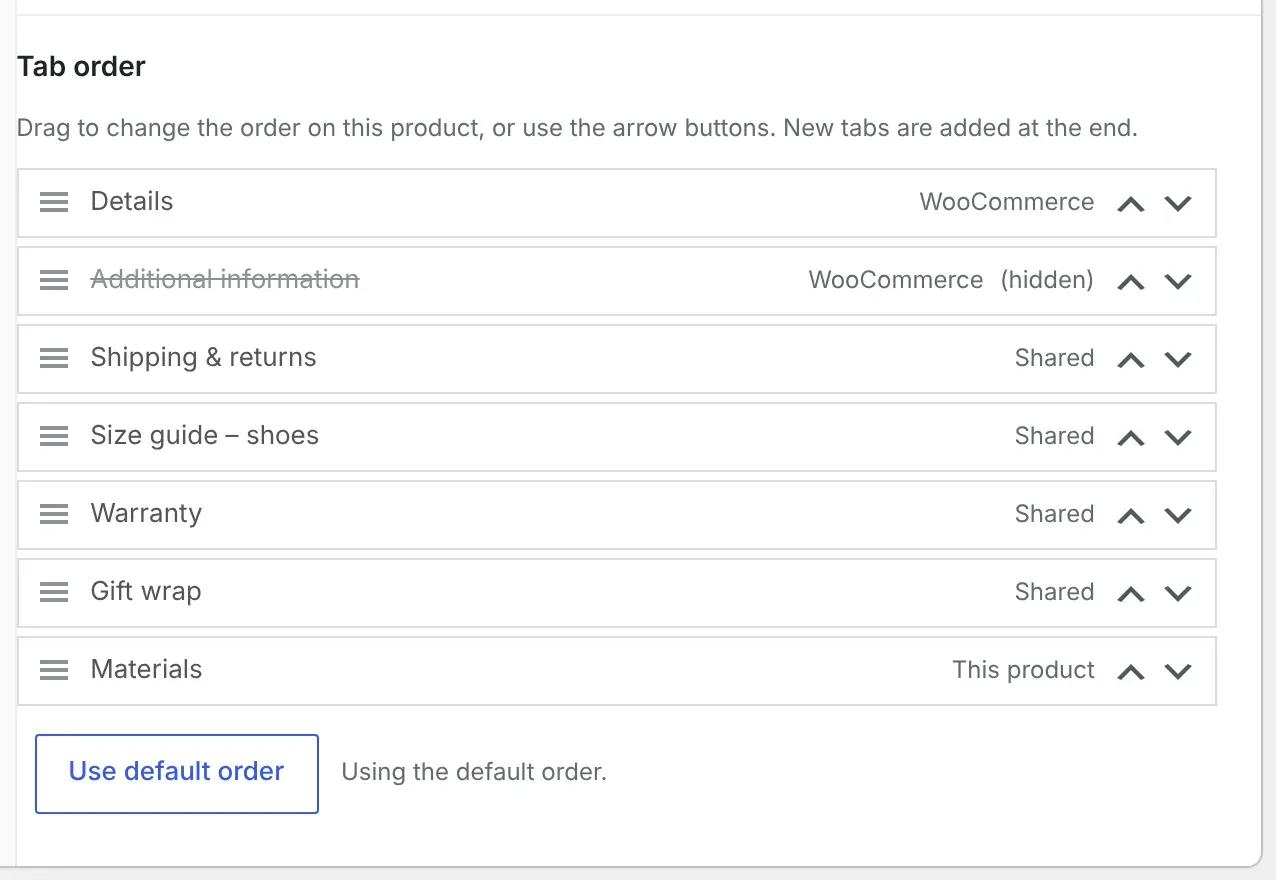
Yes. Rename, reorder or hide any tab, including WooCommerce's Description, Additional information and Reviews tabs, for the whole store under Products → Tab settings. On a single product, reorder or hide tabs in its Tabs panel.
- Rename "Description" to "Details", or hide the Reviews tab where you don't need it.
- Drag tabs into the order you want.
- Empty tabs are hidden automatically.
Step by step: rename, reorder or remove WooCommerce product tabs.
Can I edit tabs in a spreadsheet?
Yes, with WooCommerce's own product CSV export and import. BulkTab adds readable columns such as "BulkTab 1 title" and "BulkTab 1 content".
- Excel and Google Sheets safe: edit the file and import it back with "Update existing products" ticked.
- Leave a column out and that data stays as it is.
- Type
[keep]in a cell to leave just that cell unchanged.
The BulkTab columns of a real export from our test store:
"BulkTab 1 title","BulkTab 1 content","BulkTab attached","BulkTab hidden","BulkTab order"How do I switch from another tab plugin?
Go to Products → Import tabs. BulkTab imports your existing product tabs and saved tabs in one click.
- A dry run first lists how many products and tabs will be imported, and any problems, before anything is written.
- Your old plugin's data is never changed.
- Running the import again doesn't create duplicates.
- While both plugins are active, each tab appears only once on the product page.
Safe to try
The dry run writes nothing, and the import never changes the other plugin's data, so you can check the result before you deactivate the old plugin.
Will it work with my theme, page builder or translation plugin?
Classic themes and block themes using WooCommerce's default product template show the tabs automatically. If your theme or page builder (Elementor, Divi and others) uses its own product layout, place a shortcode where the tabs should appear. Tab titles and content are translatable with WPML and Polylang.
| Shortcode | Shows |
|---|---|
[bulktab_tabs] | All tabs of the current product. |
[bulktab_tab key="size-guide"] | One shared tab, by its Tab ID (shown in the shared tab's sidebar). |
[bulktab_tab slot="1"] | One of the product's own tabs, by its number. |
[bulktab_tabs id="123"] | The tabs of a specific product, outside the product page. |
Will it slow down my store or track anything?
- No extra scripts or styles on your storefront. Your theme and WooCommerce display the tabs.
- No tracking, no data sent anywhere, no pop-ups and no repeating notices.
- Everything described here is free and fully working. There are no locked features, trials or licence checks in the free plugin.
What BulkTab Pro adds
BulkTab Pro is a separate add-on for stores that manage tabs at scale. It costs $49.99/year for 1 site and requires the free plugin.
Combined rules with a live count
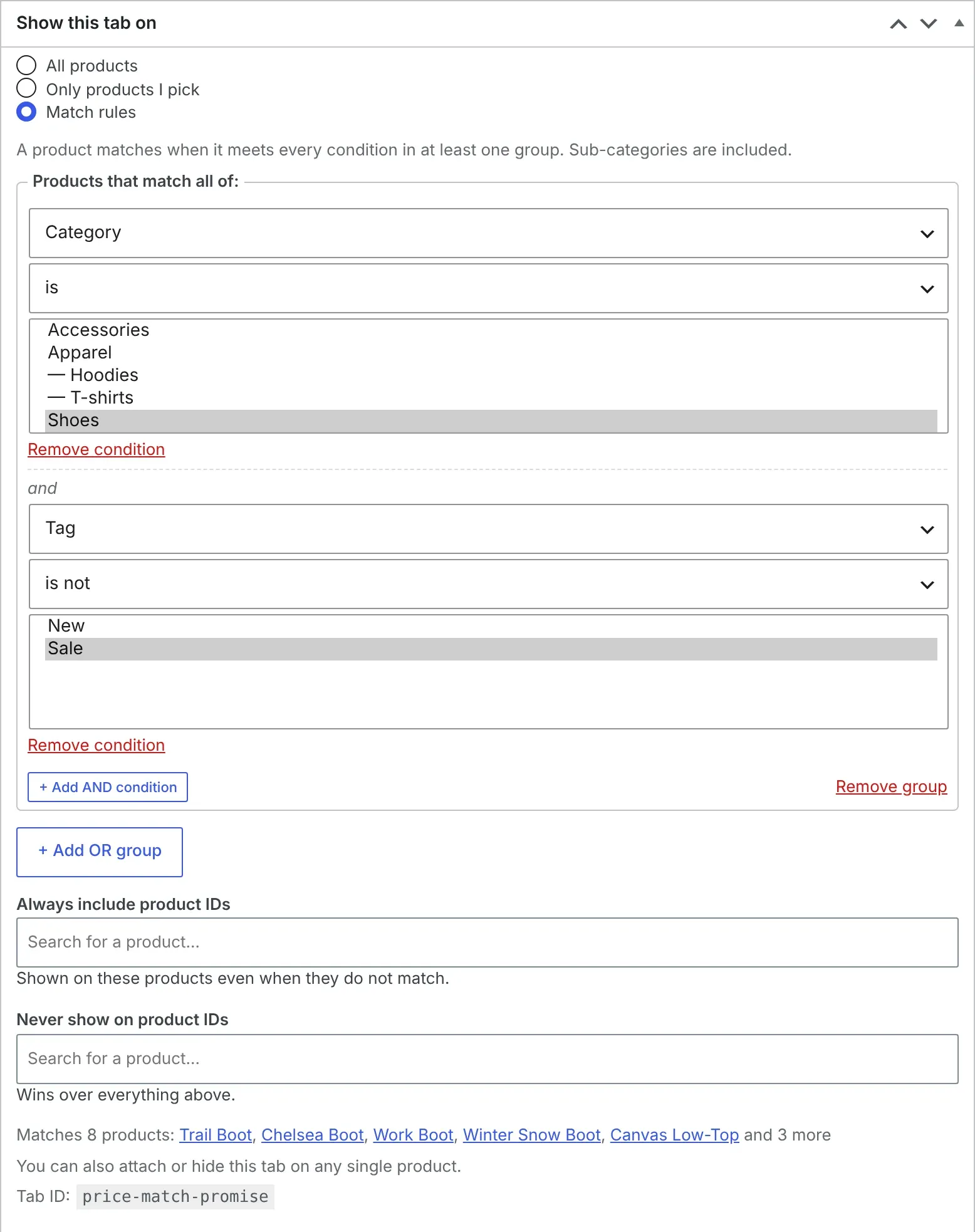
Combine categories, tags and brands with AND, OR and NOT, plus always-include and never-show product lists. For example: "Shoes, but not products tagged Sale". While you edit a rule, a live count shows how many products match.
Bulk changes with one-click undo
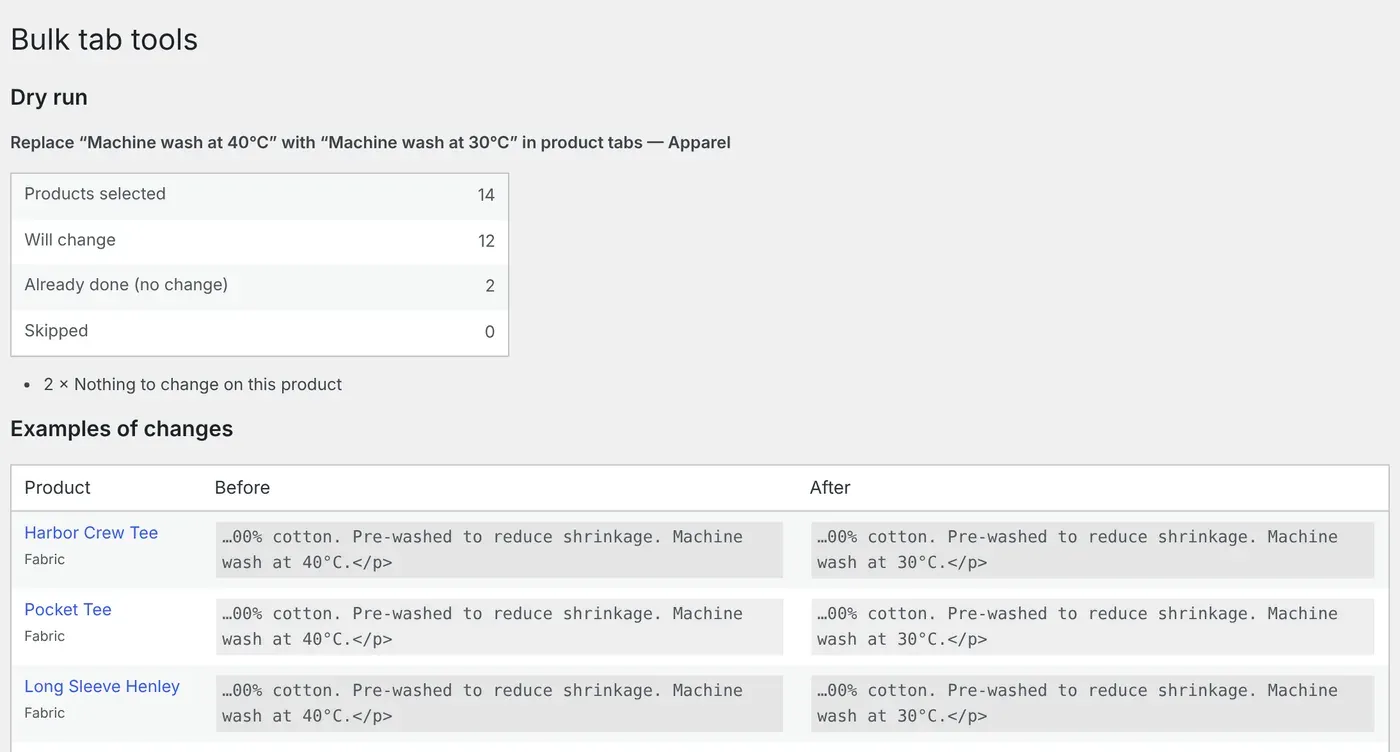
Add, attach, hide, replace or remove tabs across thousands of products. Every job starts with a preview, runs in the background, and the whole job can be undone with one click.
Backup, restore and more
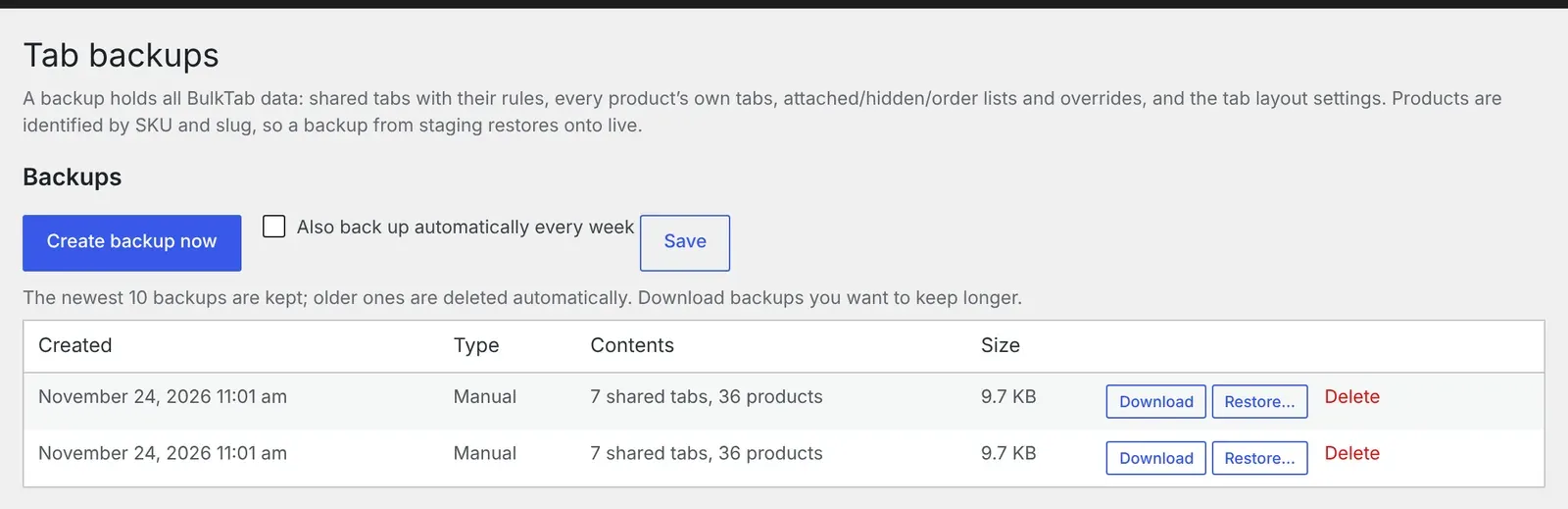
- Full backup and restore of all tab data, including from staging to live (products are matched by SKU or slug).
- Per-product override of a shared tab: replace it on one product, or add text before or after it.
- WP All Import support.
What do I need?
- WordPress 6.8 or later
- PHP 7.4 or later
- WooCommerce, using the classic product editor
Stop pasting the same tab into every product
Install BulkTab free from WordPress.org: no locked features, no trials, no tracking. Add Pro later if your catalog outgrows it.