
How to Add a Size Chart to WooCommerce Products
To add a size chart in WooCommerce, put the chart in a product tab that shows on every product in the right category. Use a short woocommerce_product_tabs snippet that checks the category, or use BulkTab with no code: write one shared "Size guide" tab and show it on that category, sub-categories included.
Why a tab is the right place for a size chart
You could paste the chart into each product's description, but then a store with a few hundred shoes has a few hundred copies of the same table. When a measurement changes, you edit every one, and some will be missed.
A size chart is shared information. It belongs in one place, shown on every product it applies to:
- One copy to edit. Fix a number once and every product shows the change.
- New products are covered. A product added to the category gets the chart without anyone remembering to paste it.
- Descriptions stay short. Customers who need the chart click the tab; everyone else reads about the product.
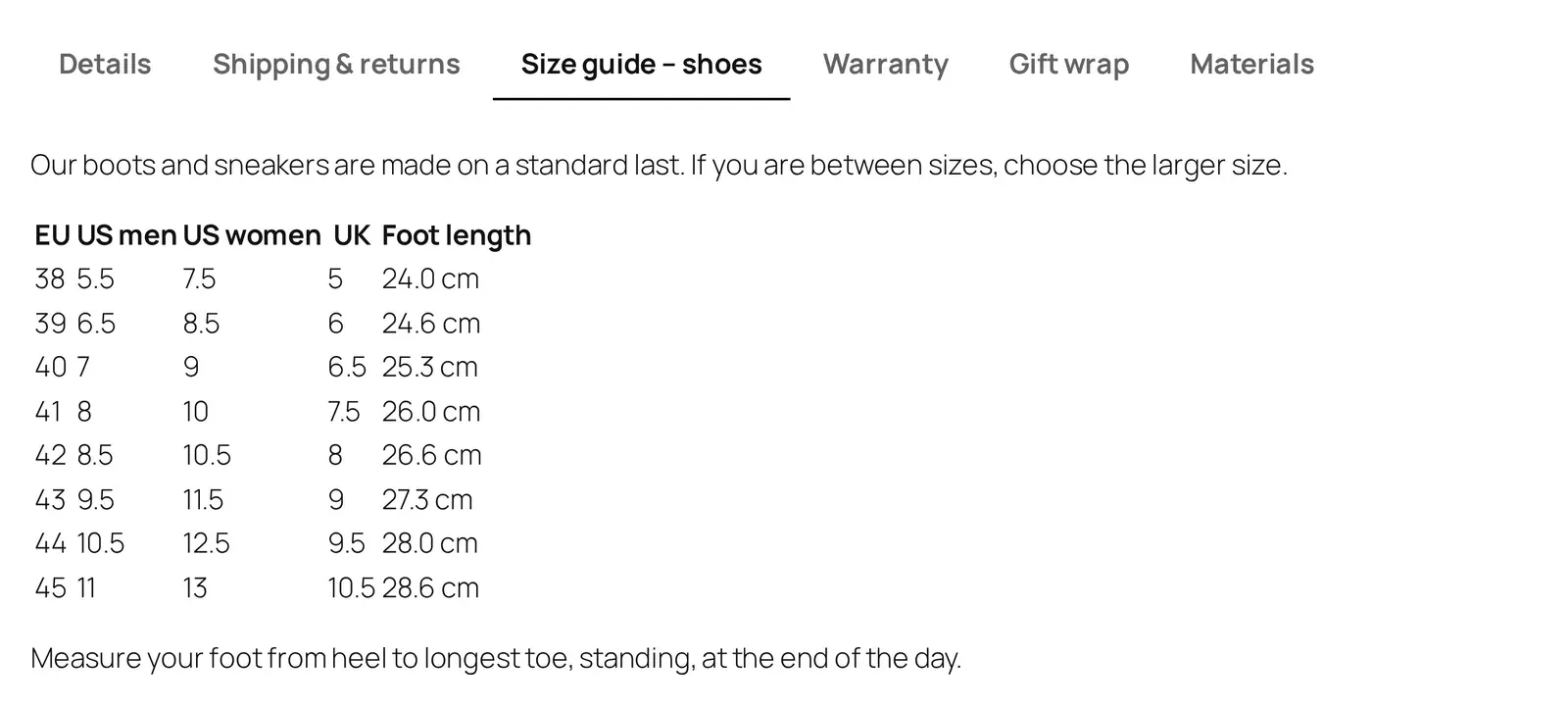
Before you start: build the chart
Decide how many charts you need. Most stores need one per kind of product, such as one for shoes and one for clothing, not one per product. For each chart:
- Use the sizes your customers know. Shoe stores often show EU, US and UK sizes with foot length.
- Give measurements in both centimetres and inches if you sell abroad.
- Add one sentence on how to measure, and one on fit, such as "If you are between sizes, choose the larger size."
- Keep the table narrow. Wide tables are hard to read on phones.
Use a real HTML table rather than an image of a table. Text tables are readable by screen readers, can be found by search engines, and stay sharp on every screen.
Option one: add a size chart tab with code
This snippet adds a "Size chart" tab to every product in the Shoes category, including its sub-categories, such as Boots and Sneakers:
/**
 * Add a "Size chart" tab to products in the Shoes category
 * (and its sub-categories, such as Boots and Sneakers).
 */
add_filter( 'woocommerce_product_tabs', function ( $tabs ) {
	global $product;
	if ( ! $product instanceof WC_Product ) {
		return $tabs;
	}

	$shoes = get_term_by( 'slug', 'shoes', 'product_cat' );
	if ( ! $shoes ) {
		return $tabs;
	}

	// wc_get_product_cat_ids() includes the parent categories of each category.
	if ( ! in_array( $shoes->term_id, wc_get_product_cat_ids( $product->get_id() ), true ) ) {
		return $tabs;
	}

	$tabs['size_chart'] = array(
		'title'    => __( 'Size chart', 'your-textdomain' ),
		'priority' => 15,
		'callback' => function () {
			?>
			<h2><?php esc_html_e( 'Size chart', 'your-textdomain' ); ?></h2>
			<table>
				<thead><tr><th>EU</th><th>US men</th><th>US women</th><th>UK</th></tr></thead>
				<tbody>
					<tr><td>40</td><td>7</td><td>9</td><td>6.5</td></tr>
					<tr><td>41</td><td>8</td><td>10</td><td>7.5</td></tr>
					<tr><td>42</td><td>8.5</td><td>10.5</td><td>8</td></tr>
					<tr><td>43</td><td>9.5</td><td>11.5</td><td>9</td></tr>
				</tbody>
			</table>
			<?php
		},
	);
	return $tabs;
} );
How to use it:
- Put the code in a child theme's
functions.phpfile or a code snippets plugin, never in the parent theme. - Change
'shoes'to the slug of your category. You find the slug under Products → Categories. - Replace the rows of the table with your own sizes.
- Open a product in that category to check the tab, then a product outside it to check that the tab is absent.
The important line is the category check. has_term() only looks at the categories ticked on the product, so a product in Boots would not match Shoes. wc_get_product_cat_ids() also returns the parent categories, so sub-categories count. We tested the snippet on a store with a Boots category inside Shoes before publishing.
The downside: the chart now lives in code. Every change to a measurement needs someone who can edit PHP, and a second chart for clothing means a second copy of the code.
Option two: add a size chart with BulkTab, no code
BulkTab is a free plugin for shared product tabs, with no locked features.
- Install BulkTab and activate it.
- Go to Products → Shared tabs → Add shared tab and name it, for example "Size guide – shoes".
- Add your chart in the editor. Write the table as HTML in the Code tab, or paste it from a document into the Visual tab. Add your measuring tips below it.
- Under Show this tab on, choose Products in…, pick Category, and select your category. Sub-categories are included.
- Click Publish.
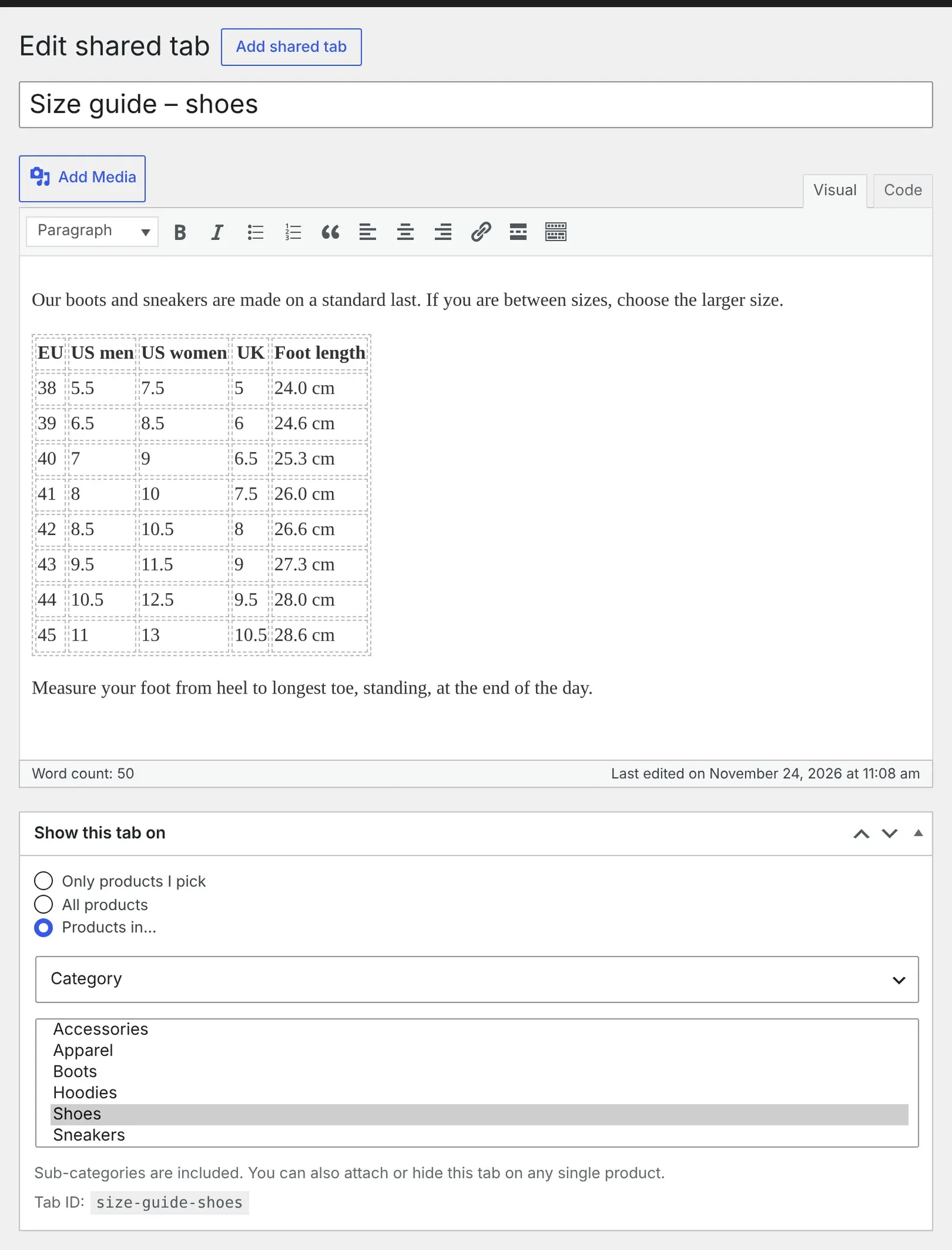
Every product in the category now shows the chart, and new products added to it get it automatically. To change a size, edit the shared tab once.
More than one chart
Create a second shared tab, such as "Size guide – apparel", and point it at your clothing category. If a brand runs small, you can show a brand-specific chart with a rule on that brand instead. WooCommerce includes product brands as a standard taxonomy.
One product with a different fit
Open that product, go to Product data → Tabs, tick Hide on this product next to the shared chart, and add the product's own size tab under This product's tabs.
Common problems
The chart doesn't show on products in a sub-category
In code, this is usually has_term(), which ignores parent categories; use the category check from the snippet above. In BulkTab, sub-categories are always included.
The chart shows on products that shouldn't have it
The product is probably in two categories, such as Shoes and Accessories. Check the ticked categories on the product, or hide the tab on that product.
The table looks cramped on phones
Cut the number of columns, shorten the headings, or split one wide table into two. If the table scrolls sideways, many customers never notice the hidden columns.
The chart disappeared after an import or migration
That usually means the tab data was damaged. Our guide to why WooCommerce product tabs disappear explains the causes and how to prevent them.
Frequently asked questions
Do I need a size chart plugin for WooCommerce?
No. A size chart is a product tab with a table in it. A short snippet or a general tab plugin such as BulkTab does the job, and the same tool also handles shipping, care and warranty tabs.
Can I show different size charts for different brands?
Yes. With BulkTab, create one shared tab per brand and set each to show on that brand. With code, check the product's brand in the filter.
Can I add a size chart to every product at once?
Yes. In BulkTab, set the shared tab to All products. In code, remove the category check from the snippet.
Will customers on phones see the size chart?
Yes. The tab is part of the product page, so your theme shows it on phones as well, usually as a tab or a section further down the page.