
How to Add a Custom Product Tab in WooCommerce
To add a custom tab to a WooCommerce product page, hook a function into the woocommerce_product_tabs filter that adds a title, a priority and a callback that prints the content. Or, with no code, use BulkTab: write the tab in the WordPress editor and choose where it shows, on one product, a category or every product.
How WooCommerce product tabs work
Below the product summary, WooCommerce shows up to three tabs: Description, Additional information and Reviews. Behind the scenes they are entries in one PHP array. Before the page is printed, that array passes through the woocommerce_product_tabs filter, so any plugin or snippet can add, rename, reorder or remove entries. WooCommerce documents this in Editing product data tabs.
Each tab entry has three parts:
- title: the label customers click.
- priority: where the tab sits. Lower numbers come first. WooCommerce gives Description
10, Additional information20and Reviews30. - callback: a function that prints the tab's content.
Option one: add a tab with code
Use this if you are comfortable editing PHP and the tab content rarely changes.
- Decide where the code goes. Use a child theme's
functions.phpfile or a code snippets plugin. Never edit the parent theme: WooCommerce's documentation warns that theme updates overwrite custom code added there. - Paste this snippet. It adds a "Shipping" tab to every product:
/**
 * Add a "Shipping" tab to every WooCommerce product page.
 */
add_filter( 'woocommerce_product_tabs', function ( $tabs ) {
	$tabs['shipping_info'] = array(
		'title'    => __( 'Shipping', 'your-textdomain' ),
		'priority' => 25, // Description is 10, Additional information 20, Reviews 30.
		'callback' => function () {
			echo '<h2>' . esc_html__( 'Shipping', 'your-textdomain' ) . '</h2>';
			echo '<p>' . esc_html__( 'Orders ship within 2 working days. Free returns within 30 days.', 'your-textdomain' ) . '</p>';
		},
	);
	return $tabs;
} );- Change the title and the text in the callback to your own.
- Choose the position with
priority. The25in the example places the tab between Additional information and Reviews. - Open any product page and check the new tab. If your site uses a page cache, clear it first.
We tested this snippet on a WooCommerce store running the Twenty Twenty-Five theme before publishing.
Showing the tab on some products only
The snippet above adds the tab everywhere. To limit it, check the product inside the filter and return $tabs unchanged when it doesn't match. Our size chart guide shows a tested version that adds a tab only to products in one category, sub-categories included.
The limits of the code approach
The tab text lives in your theme or snippet plugin, so every wording change means editing code. One snippet gives every product the same text unless you also add custom fields. And if the code sits in a child theme, switching themes removes the tab.
Option two: add a tab without code
BulkTab is a free plugin that does the same job from the WordPress admin, with no locked features.
- Install BulkTab from WordPress.org and activate it. WooCommerce must be active.
- Go to Products → Shared tabs and click Add shared tab.
- Give the tab a title, such as "Shipping", and write the content in the normal editor. A tab can hold text, tables, images, video embeds, links to PDFs and shortcodes.
- Under Show this tab on, pick All products, or Products in… a category, tag or brand. Sub-categories are included.
- Click Publish. Every matching product shows the tab, and new products in that category get it automatically.
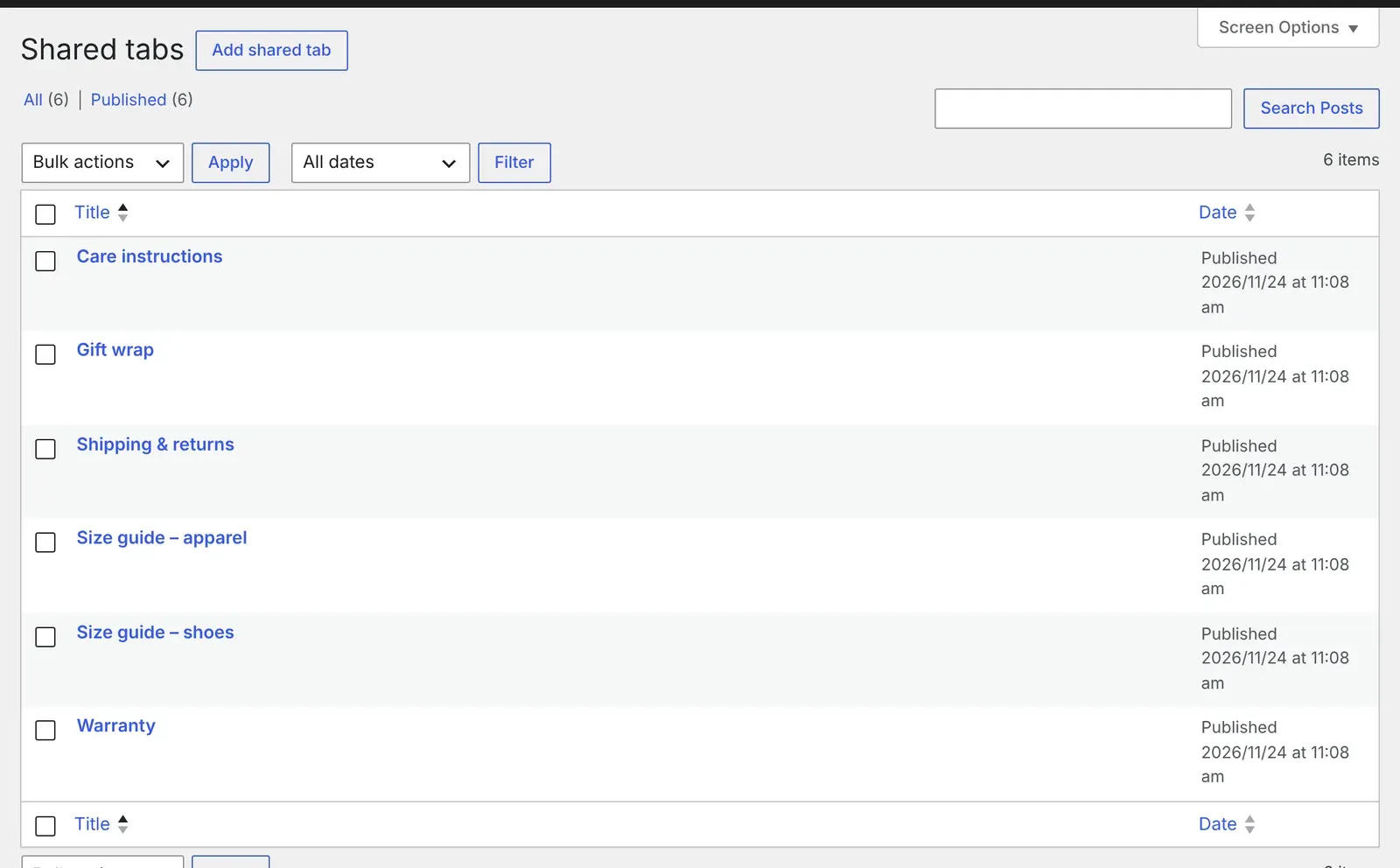
To change the text later, edit the shared tab once and every product shows the new version on the next page load.
A tab for one product only
Open the product, go to Product data → Tabs, and add a tab under This product's tabs. Each product can have up to 20 tabs of its own. You can also attach a shared tab to a single product, or hide it on one product, from the same panel.
Which option should you choose?
| Need | Code snippet | BulkTab |
|---|---|---|
| Who can edit the tab text | Someone who can edit PHP | Anyone with admin access |
| Show on a category, tag or brand | Extra code per rule | Pick it in the editor |
| Different tabs per product | Needs custom fields | Built in |
| Survives a theme switch | Only if not in the theme | Yes |
| Edit in a spreadsheet | No | Yes, in the WooCommerce CSV |
If you need one fixed tab and you already maintain a child theme, the snippet is fine. If store staff will edit the content, or different products need different tabs, a plugin saves time.
Common problems
The tab doesn't appear
First check that the callback prints something: a tab with no content is easy to miss. Then check your theme. Some themes and page builders replace WooCommerce's product template and never print the tabs. In that case use your builder's product tabs element, or BulkTab's [bulktab_tabs] shortcode where the tabs should appear.
The tab appears twice
The same code was probably added in two places, such as the theme and a snippet plugin, or two plugins add a similar tab. Remove one copy.
The tab is in the wrong position
Change its priority. Remember that lower numbers appear first, and that other plugins may also change priorities.
The site shows an error after pasting the code
A missing bracket or quote stops PHP. Remove the code through your host's file manager or SFTP, then paste it again carefully. Code snippets plugins usually catch these errors before saving.
Frequently asked questions
Can I add a custom tab to just one product?
Yes. In code, compare $product->get_id() with the product's ID inside the filter. In BulkTab, open the product and add a tab in its Tabs panel, or attach a shared tab to that product.
Where should I put WooCommerce tab code?
In a child theme's functions.php file or a code snippets plugin. Never in the parent theme, because theme updates overwrite it.
How many tabs can a WooCommerce product have?
WooCommerce itself doesn't set a limit. With BulkTab, each product can have up to 20 tabs of its own, plus any shared tabs that match it.
Can I edit custom tabs in bulk?
With code, only by editing the code. With BulkTab, edit a shared tab once to update every product, or edit product tabs in the WooCommerce product CSV export and import the file back.