
Why WooCommerce Product Tabs Disappear (and Fixes)
If your WooCommerce product tabs disappeared, one of three things usually happened: an import, update or migration damaged the tab data, a theme or page builder stopped printing the tabs, or a setting or snippet hid them. Of the 750 support threads we read about product-tab plugins, 26% were about tabs lost after updates, imports or migrations.
What 750 support threads told us
Before building BulkTab, we read 530 reviews of eight product-tab plugins and 750 support threads. We sorted the threads by the problem they described:
| What the support thread was about | Share of threads |
|---|---|
| Tabs disappearing after updates, imports or migrations | 26% |
| Problems with a theme or page builder | 21% |
| Wanting to reorder, rename or hide tabs | 18% |
| Import and export problems | 14% |
| The same tab typed into every product | 12% |
| Translation problems with WPML | 6% |
Lost tabs were the biggest group, and theme problems often look the same to a store owner: the tabs are gone. The causes differ, and so do the fixes.
Cause one: the tab data was damaged
Some tab plugins store all of a product's tabs as one PHP "serialized" value. A serialized value records the exact length of every piece of text inside it. If anything changes the text without updating those lengths, PHP can't read the value any more, and the plugin shows no tabs at all.
Two everyday jobs can do that:
- CSV imports and spreadsheet edits. Exporting products with the WooCommerce product CSV exporter, editing a tab in Excel or Google Sheets and importing the file back changes the text but not the recorded lengths.
- Search-and-replace during a migration. Moving from a staging site to live, or from
httptohttps, changes every URL. A plain database search-and-replace breaks the lengths of serialized values that contain those URLs.
How to fix it: restore the product data from a backup taken before the change. For future migrations, use a serialization-aware tool such as WP-CLI's wp search-replace, and test imports on a staging copy first.
How to prevent it: store tabs as plain fields, one value per title and per content, so nothing depends on recorded lengths. That is how BulkTab stores them.
Cause two: the theme or page builder doesn't print the tabs
WooCommerce prints the tabs from its single product template. Page builders such as Elementor and Divi, and some themes, replace that template with their own layout. If the new layout has no tabs element, the tabs vanish from the page even though the data is fine.
How to fix it: add your builder's product tabs element to the layout, or a shortcode where the tabs should appear. BulkTab provides [bulktab_tabs] for all of a product's tabs.
On block themes, WooCommerce's Product Details block shows tabs by default. If it is switched to the accordion style, tabs appear as accordion sections instead, which can look like they have gone.
Cause three: something hides the tab
Sometimes the tab is deliberately removed, just not by you:
- Empty content. WooCommerce hides the Description tab when a product has no description, and the Additional information tab when there are no attributes, weight or dimensions. BulkTab also hides empty tabs.
- Reviews switched off, store-wide or on the product's Advanced settings.
- A snippet or plugin that unsets tabs in the
woocommerce_product_tabsfilter (how that filter works), sometimes for every product rather than the one intended.
To find out which, log the tabs that are left after every plugin and theme has run. Add this temporary snippet, view the product while logged in as an administrator, and read your debug log:
/**
 * Debug: log which tabs are left after every plugin and theme has run.
 * View a product page while logged in as an admin, then check wp-content/debug.log
 * (needs WP_DEBUG and WP_DEBUG_LOG set to true). Remove when done.
 */
add_filter( 'woocommerce_product_tabs', function ( $tabs ) {
	if ( current_user_can( 'manage_options' ) ) {
		$summary = array();
		foreach ( $tabs as $key => $tab ) {
			$summary[] = $key . ' (' . ( $tab['priority'] ?? '?' ) . ')';
		}
		error_log( 'Product tabs on ' . get_the_ID() . ': ' . implode( ', ', $summary ) );
	}
	return $tabs;
}, 9999 );
If a tab is missing from the log, something removed it. Deactivate plugins one at a time on a staging copy until it comes back. We tested it on a WooCommerce store before publishing.
Cause four: the plugin is no longer maintained
An unmaintained plugin gets no fixes when WordPress or WooCommerce change. The most-installed tab plugin runs on about 70,000 stores and has not been updated since April 2025 (as of November 2026). If your tabs depend on it, plan a move while the data is still readable.
How to find the cause, step by step
- Open the product in the admin. If the tab content is still there, the data is fine and the cause is display: go to step two. If the content is empty or garbled, the data was damaged: restore from a backup.
- Switch to a default theme on a staging copy. If the tabs come back, your theme or page builder is the cause.
- Run the logging snippet above to see which tabs reach the page.
- Check recent changes: an import, a migration, a plugin update or a new snippet.
- Clear every cache and check the product page again while logged out.
How BulkTab keeps tabs from disappearing
We built BulkTab around this problem:
- Each tab title and content is stored as its own plain field, so updates, CSV imports, search-and-replace and migrations leave them intact.
- The previous version of every product tab is kept, so a bad edit can be undone from the product's Tabs panel.
- If BulkTab finds tab data it can't read, it tells you which product is affected and keeps the data untouched, instead of silently showing an empty tab.
- Deleting the plugin keeps your tabs unless you choose otherwise.
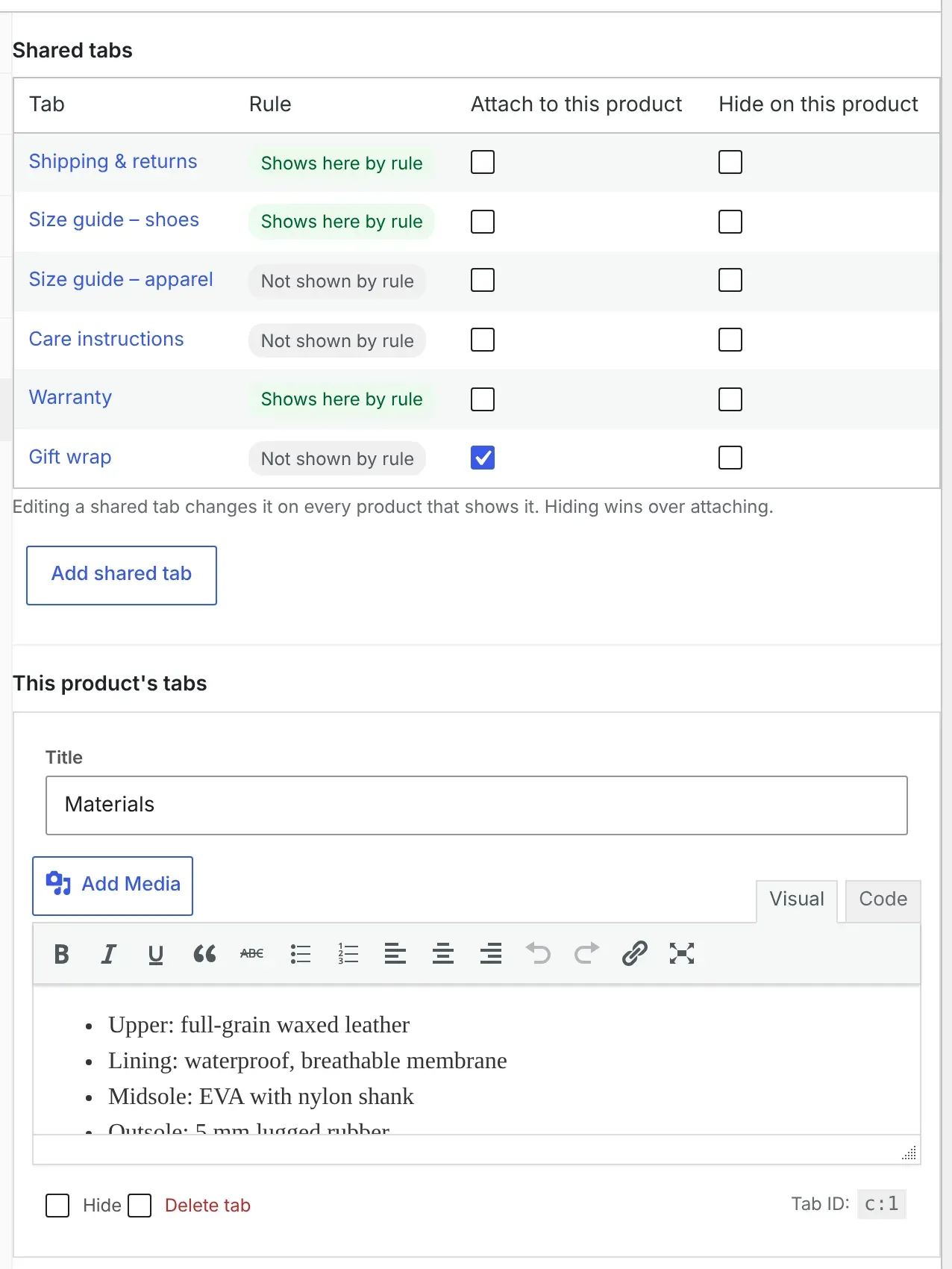
For big catalogs, BulkTab Pro adds full backup and restore of all tab data, including from a staging site to live, matching products by SKU or slug. See pricing.
Common problems
Only some products lost their tabs
Those products were probably in the import file, or their tabs contained text the search-and-replace changed. Compare one with a product that still has its tabs.
The tabs vanished after a redesign
The data is almost certainly fine. Your new layout has no tabs element: see cause two.
Frequently asked questions
Why did my WooCommerce tabs disappear after an update?
Usually because the update changed how a theme, builder or plugin prints the product page, or because the tab plugin could no longer read its stored data. Check the product in the admin first: if the content is there, it is a display problem.
Can I recover product tabs after a bad import?
If the data was damaged, restore the affected products from a backup taken before the import. With BulkTab, the previous version of each product tab is also kept, so a single bad edit can be undone.
Why do my tabs show in the admin but not on the product page?
The data is fine, so the page template is the problem. Your theme or page builder is probably replacing WooCommerce's product layout. Add a tabs element or a shortcode to the layout.
How do I stop tabs breaking during a site migration?
Use a serialization-aware search-and-replace tool, test on staging first, and store tabs as plain fields rather than one serialized value.