Rename, Reorder or Remove WooCommerce Product Tabs
To remove the Reviews tab in WooCommerce, unset $tabs['reviews'] in a woocommerce_product_tabs filter, or turn reviews off. To rename or reorder a tab, change its title or priority in the same filter. Without code, BulkTab's Tab settings screen renames, reorders or hides any tab store-wide, and each product's Tabs panel reorders or hides tabs on that product.
The three default WooCommerce tabs
WooCommerce adds up to three tabs to each product page, and each has a key you use in code:
| Tab | Key | Shown when |
|---|---|---|
| Description | description | The product has a long description |
| Additional information | additional_information | The product has attributes, a weight or dimensions |
| Reviews | reviews | Reviews are enabled for the product |
That last column matters: a tab that seems to vanish may simply have nothing to show. WooCommerce's guide to editing product data tabs recommends checking that a tab exists before changing it, for the same reason.
Remove the Reviews tab without code
If you don't want reviews at all, you don't need code:
- Store-wide: go to WooCommerce → Settings → Products and untick Enable product reviews. The Reviews tab disappears from every product.
- One product: edit the product, open Product data → Advanced, and untick Enable reviews.
Existing reviews are not deleted. They stay in your database and come back if you turn reviews on again.
Rename, reorder and remove tabs with code
To keep reviews switched on but change how the tabs look, use the woocommerce_product_tabs filter. This snippet does all three jobs at once. Delete the parts you don't need:
/**
 * Rename, reorder and remove the default WooCommerce product tabs.
 */
add_filter( 'woocommerce_product_tabs', function ( $tabs ) {
	// Rename: "Description" becomes "Details".
	if ( isset( $tabs['description'] ) ) {
		$tabs['description']['title'] = __( 'Details', 'your-textdomain' );
	}

	// Reorder: show Reviews first (lower priority = further left).
	if ( isset( $tabs['reviews'] ) ) {
		$tabs['reviews']['priority'] = 5;
	}

	// Remove: hide the Additional information tab.
	unset( $tabs['additional_information'] );

	return $tabs;
}, 98 );
How it works:
- Rename: each tab has a
title. The snippet changes Description to "Details". Theisset()check skips products that have no description. - Reorder: tabs are sorted by
priority, lowest first. WooCommerce uses10for Description,20for Additional information and30for Reviews, so giving Reviews5moves it to the front. - Remove:
unset()takes a tab out of the array. Here it removes Additional information. To remove Reviews instead, useunset( $tabs['reviews'] );.
The filter runs at priority 98, as in WooCommerce's own examples, so it runs after most plugins have added their tabs. Put the code in a child theme's functions.php or a code snippets plugin, never in the parent theme. We tested this snippet on a WooCommerce store before publishing.
Rename, reorder or hide tabs without code
BulkTab, a free plugin with no locked features, adds a screen for this.
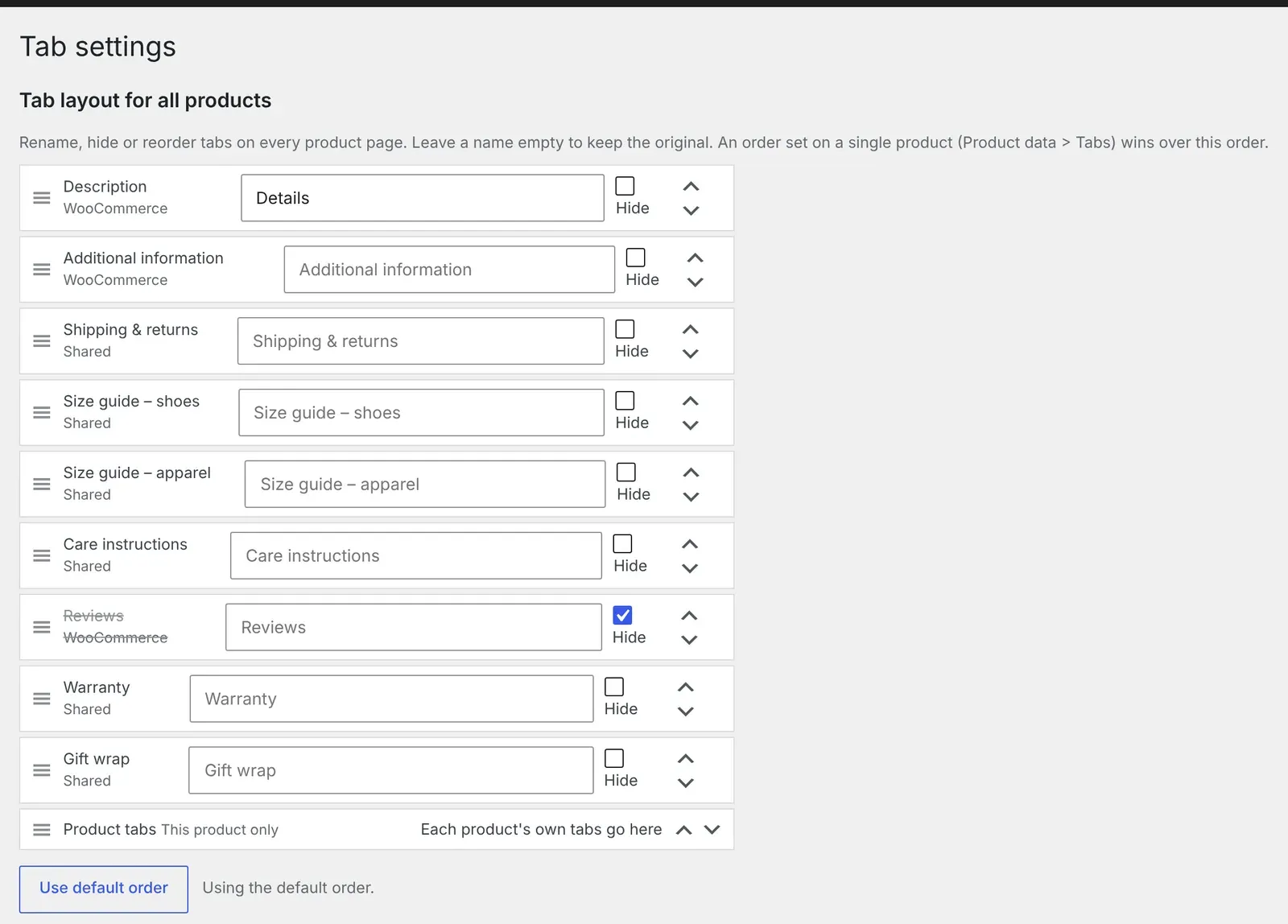
- Install BulkTab and go to Products → Tab settings.
- To rename a tab, type the new name next to it, such as "Details" for Description. Leave the box empty to keep the original name.
- To hide a tab on every product, tick Hide.
- To reorder, drag the tabs or use the arrow buttons. Your own shared tabs appear in the same list, so you can place them between the default tabs.
- Click Save Changes.
On a single product
Open the product, go to Product data → Tabs, and use the Tab order list at the bottom. Drag tabs into a new order or hide one on this product only. A per-product order wins over the store-wide order.
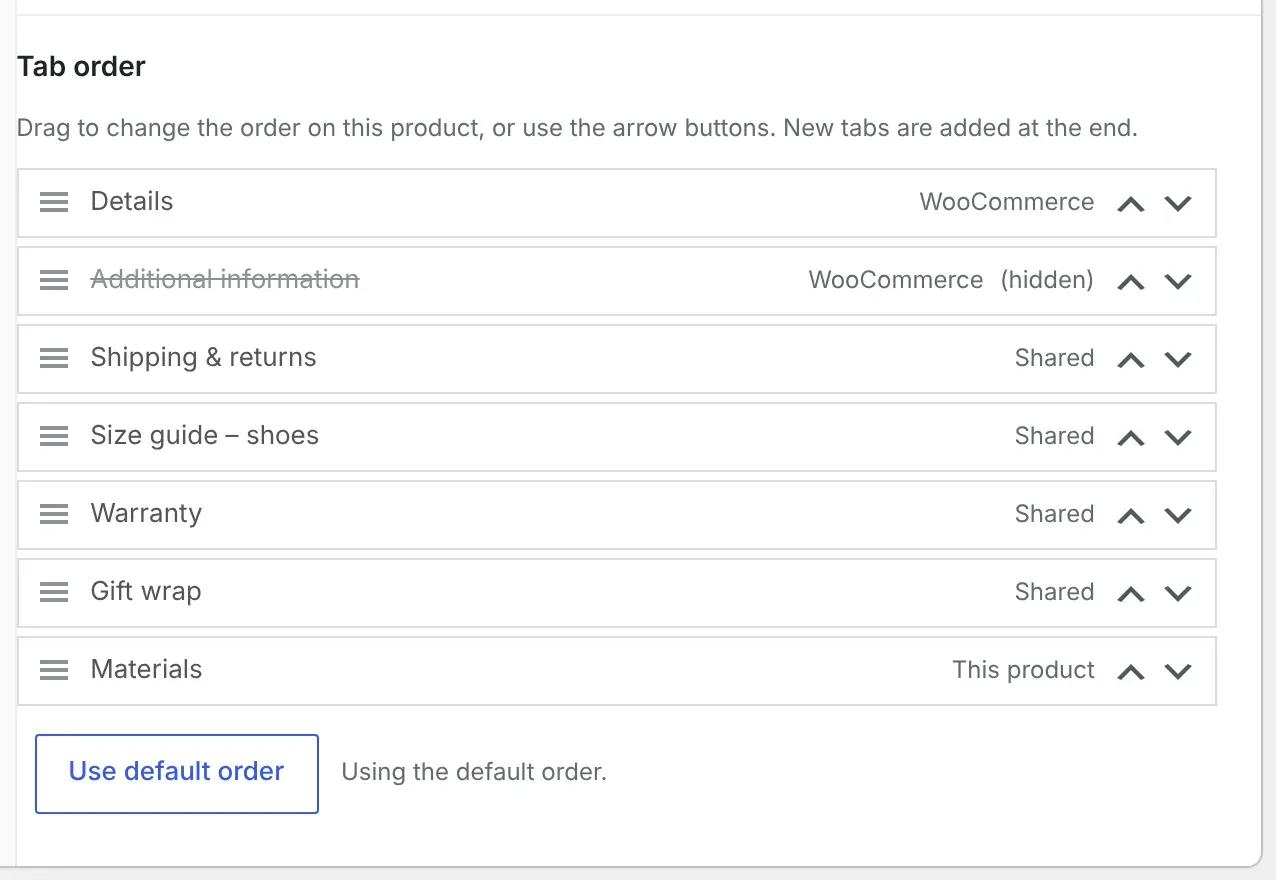
Empty tabs are hidden automatically, so a product without a long description doesn't show an empty Description tab.
Common problems
The tab is renamed but the heading inside still says "Description"
WooCommerce prints a separate heading at the top of the Description and Additional information panels. Renaming the tab doesn't change that heading. In code, change it with the woocommerce_product_description_heading and woocommerce_product_additional_information_heading filters, or return an empty string to remove it.
My changes don't show on block themes with the accordion layout
With WooCommerce's default Product Details block, tabs behave as in classic themes. If you switched that block to its accordion style, rename, hide or reorder the default sections in the Site Editor instead.
A plugin's tab ignores my order
Some plugins set their tab priority late. Run your filter later, for example at priority 98, or use a settings screen that applies the order after other plugins have added their tabs.
Nothing changed at all
Clear your page cache and any server or CDN cache, then reload the product page while logged out.
Frequently asked questions
Does removing the Reviews tab delete my reviews?
No. Reviews are stored separately in your database. Removing or hiding the tab only stops them showing, and they come back when you show the tab again.
How do I hide the Additional information tab in WooCommerce?
Add unset( $tabs['additional_information'] ); inside a woocommerce_product_tabs filter, or tick Hide next to it in BulkTab's Tab settings. The tab also disappears on its own when a product has no attributes, weight or dimensions.
Can I rename a tab on one product only?
In code, check the product inside your filter before changing the title. In BulkTab, store-wide names are set under Tab settings, and each product's own tabs can have any title you like.
Can I move the Reviews tab first?
Yes. Give it a lower priority than Description, as in the snippet above, or drag it to the top in BulkTab's Tab settings.