
Bulk Edit WooCommerce Product Tabs with CSV and Excel
To bulk edit WooCommerce product tabs, export your products to CSV, edit the tab columns in Excel or Google Sheets, and import the file back with Update existing products ticked. This only works when each tab is stored as its own plain field. A short snippet can do that for one tab; BulkTab does it for every tab, with undo.
Why tab data often breaks in a spreadsheet
Store owners already edit prices, stock and descriptions this way. WooCommerce's own product CSV importer and exporter is free and handles thousands of rows. Tabs are where it goes wrong.
Many tab plugins save all of a product's tabs in one field, as a PHP array packed into a string that records the length of every piece of text. Change one word in a spreadsheet and the recorded lengths no longer match, so WordPress can't read the field and the tabs vanish. Spreadsheets also change quotes and line endings, which breaks the same check. Our guide to why WooCommerce product tabs disappear explains this in detail.
The fix is to keep each tab in its own field with plain text inside. A spreadsheet can't break plain text.
Option one: one custom field per tab, with code
This snippet shows a "Specifications" tab from a custom field called specs. Products with an empty field get no tab.
/**
 * Add a "Specifications" tab built from the product's `specs` custom field.
 * Fill the field from a CSV column named `meta:specs`, or map it in an importer.
 * Products with an empty field get no tab.
 */
add_filter( 'woocommerce_product_tabs', function ( $tabs ) {
	global $product;
	if ( ! $product instanceof WC_Product ) {
		return $tabs;
	}

	$specs = (string) $product->get_meta( 'specs' );
	if ( '' === trim( $specs ) ) {
		return $tabs;
	}

	$tabs['specs'] = array(
		'title'    => __( 'Specifications', 'your-textdomain' ),
		'priority' => 25,
		'callback' => function () use ( $specs ) {
			echo '<h2>' . esc_html__( 'Specifications', 'your-textdomain' ) . '</h2>';
			echo wp_kses_post( wpautop( $specs ) );
		},
	);
	return $tabs;
} );
How to use it:
- Put the code in a child theme's
functions.phpfile or a code snippets plugin. - In your spreadsheet, keep the ID or SKU column and add a column headed
meta:specs. - Write each product's specifications in that column. Basic HTML such as
<strong>and<br>is allowed. - Save as CSV, go to Products → Import, tick Update existing products, and upload the file.
- If the column isn't matched automatically on the Column mapping screen, set it to Import as meta.
We ran this snippet with WooCommerce's own CSV importer on a test store: products with specifications got the tab, and a product with an empty cell did not.
The downside: every new tab means another custom field and another snippet, and a bad import overwrites the old text with no way back.
Option two: BulkTab columns, no code
BulkTab is a free plugin for product tabs, and CSV support is included. Each tab title and tab content is a separate plain field, so it appears as its own readable column.
- Install BulkTab and activate it.
- Go to Products → Export. Under the columns to export, choose ID or SKU and BulkTab tabs, then export.
- Open the file. You'll see columns such as BulkTab 1 title and BulkTab 1 content, plus BulkTab attached, BulkTab hidden and BulkTab order, which hold lists of shared tab IDs separated by commas.
- Edit the cells you need. Delete the columns you aren't changing.
- Save as CSV, go to Products → Import, tick Update existing products, and import. BulkTab's columns are matched automatically.
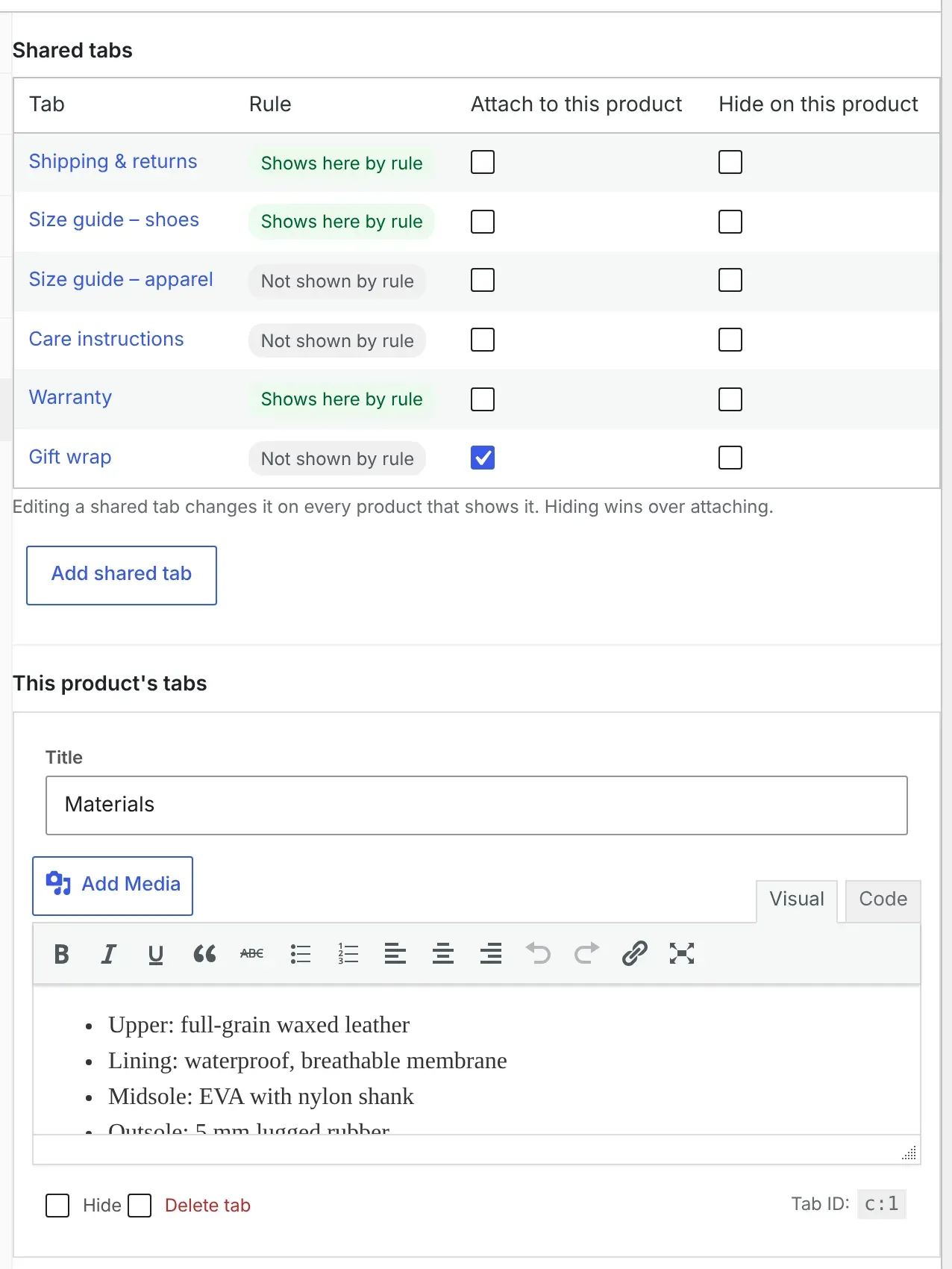
Three rules decide what happens to each field:
- Column missing: the field is left alone.
- Cell is
[keep]: the field is left alone. - Cell is empty: the field is cleared.
The previous version of each tab is kept, so a wrong import can be undone from the product's Tabs panel. Content that comes back unchanged is not rewritten, and the import report lists anything that was skipped, such as an unknown tab ID.
Don't bulk edit text that every product shares
If the same shipping or warranty text sits on hundreds of products, a spreadsheet is the slow way to change it. Make it a shared tab, show it on the right categories, and edit it once. Keep the spreadsheet for text that differs per product, such as specifications. The features page shows how shared tabs and per-product tabs work together.
Tips for Excel and Google Sheets
- Save with the right encoding. In Excel, choose
CSV UTF-8 (Comma delimited). Plain CSV can garble accents and symbols. In Google Sheets, use File → Download → Comma-separated values. - Protect SKUs and codes. Spreadsheets can turn codes into numbers and drop leading zeros. Format those columns as text before you edit.
- Test on a few rows first. Import a short file, check the products, then import the rest.
- Keep the original export. It is your backup if something goes wrong.
Common problems
Tabs went blank after the import
An empty cell clears the field. Put [keep] in cells you don't want to change, or delete the column. In BulkTab, use undo on the product to restore the previous text.
Nothing changed after the import
Update existing products wasn't ticked. Without it, WooCommerce skips every row whose ID or SKU already exists.
Accents and symbols look garbled
The file wasn't saved in the right encoding. Save it again as CSV UTF-8 and import it again.
A column was ignored
WooCommerce ignores columns it doesn't recognise. On the Column mapping screen, pick the matching field by hand: Import as meta for a meta: column, or the matching field under BulkTab product tabs.
Frequently asked questions
Can I bulk edit product tabs in Google Sheets?
Yes. Upload the exported CSV to Google Sheets, edit it, download it as CSV and import it. The steps are the same as for Excel.
Will the import change my prices or stock?
Only the columns in your file are imported. Delete every column you aren't changing, and keep the ID or SKU column so rows match the right products.
Is CSV import and export free in BulkTab?
Yes. It is part of the free plugin. BulkTab Pro adds bulk changes with a preview and one-click undo, and WP All Import support.
How do I add the same tab to many products at once?
Use a shared tab and choose the products it shows on, such as a category or brand. No spreadsheet is needed, and new products in that category get the tab automatically.